Video meeting best practices for better business calls
 | July 17, 2026 | 8 min read |
Key Points
- Test your camera, microphone, speakers and screen sharing before important video meetings.
- Improve call quality by reducing bandwidth strain, checking audio settings and keeping a backup headset nearby.
- Protect business conversations with meeting passwords, careful screen sharing and backup joining options.
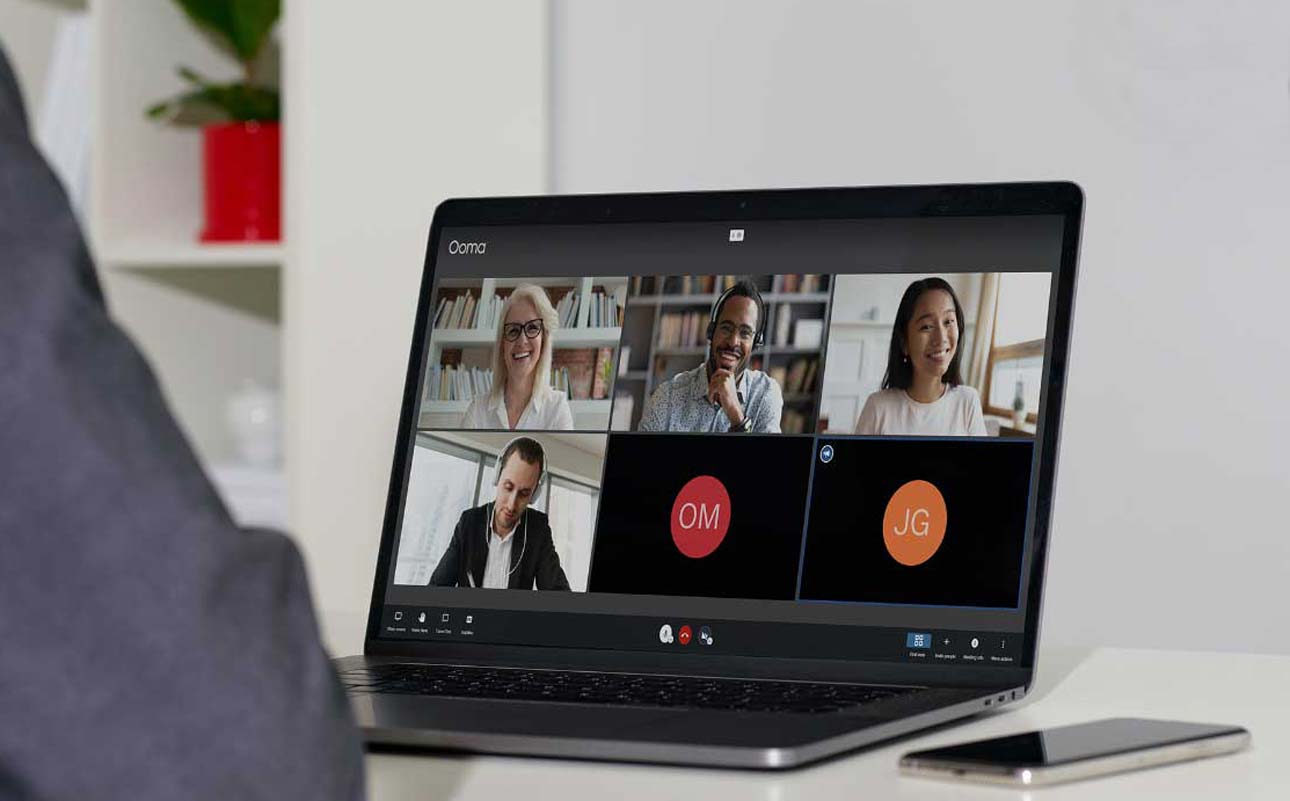
Video meetings are part of everyday business, with 98% of organizational meetings now including at least one remote participant. Teams use video calls to meet with customers, interview candidates, review projects, train employees and make decisions without needing everyone in the same room.
But a good video meeting depends on more than clicking “join.” If the audio cuts out, the screen share displays the wrong tab or the video freezes mid-sentence, the meeting can quickly go sideways.
Technical issues also result in lost time. According to a study by Archie, 72% of workers lose meeting time because of problems such as poor audio, freezing video or difficulty logging in. That lost time affects productivity and, during an important customer meeting, can also damage a business relationship.
Use these video meeting best practices to make your next call clearer, smoother and easier for everyone to join.
Video meeting best practices
Before troubleshooting individual problems, establish a simple baseline for every meeting:
- Use a video meeting platform that supports your team’s normal workflow.
- Send a complete invitation with the meeting link, time, agenda and backup joining options.
- Test your camera, microphone, speakers and screen sharing before important calls.
- Close apps and browser tabs that could slow your connection.
- Use passwords or other meeting controls when discussing private business information.
- Share only the window or file participants need to see.
- Have a backup plan if someone cannot join by video.
- Make sure the meeting has an easily understood goal, takeaway or intended outcome.
That small amount of preparation prevents many common video meeting problems. It also keeps the first five minutes from turning into everyone’s least-favorite group activity: troubleshooting out loud.
Improve grainy or lagging video
Poor video quality usually comes from one of four issues: a weak internet connection, overloaded Wi-Fi, too many apps using bandwidth or camera limitations.
Try these fixes:
- Move closer to the router or use a wired connection when possible.
- Close streaming apps, cloud backups, large downloads and unused browser tabs.
- Ask others on the same network to pause high-bandwidth activities during important meetings.
- Turn off your camera if audio and screen sharing matter more than video.
- Restart the router if poor call quality is a recurring issue.
- Use a higher-quality external webcam for frequent customer-facing meetings.
Quick troubleshooting tip: If video quality keeps dropping across different devices and meeting platforms, the problem may be related to your internet service, router placement or network equipment rather than the video meeting software itself.
Fix audio problems before the meeting starts
Audio matters more than video in most business meetings. People can usually tolerate a frozen camera for a few seconds, but they cannot make decisions if voices repeatedly cut out or disappear.
Before an important meeting:
- Confirm that the correct microphone is selected.
- Confirm that the correct speaker or headset is selected.
- Test audio inside the video meeting platform, not only in your computer settings.
- Check whether your browser or operating system has blocked microphone access.
- Keep a backup headset nearby.
- Restart the meeting app if the microphone or speaker list looks incorrect.
- Make sure your computer and meeting software are fully updated.
- Complete any scheduled updates before the meeting begins.
- Restart your computer if audio problems continue.
If everyone sounds as though they are calling from the far end of a hallway, start with the microphone setting. It is often the simplest fix.
Reduce echo and feedback
Echo usually occurs when a microphone picks up sound from nearby speakers or when more than one microphone is active in the same room.
To reduce echo:
- Use headphones or a headset.
- Move the microphone farther away from speakers.
- Mute extra devices in the room.
- Ask people in shared spaces to join from one device or mute all but one microphone.
- Turn off unused Bluetooth audio devices.
- Update your meeting app if echo problems continue.
Echo is one of those small problems that can make a meeting feel twice as long. Fix it early and everyone will silently thank you.
Share your screen safely and clearly
Screen sharing is one of the most useful parts of a video meeting, but it can also reveal information you did not intend to show.
Before sharing your screen:
- Close private documents, messages and unrelated browser tabs.
- Share a single window instead of your full desktop when possible.
- Increase the zoom level on documents or slides so participants can read them.
- Turn off pop-up notifications.
- Open the exact file, dashboard or webpage you plan to discuss.
- Pause before switching between windows so participants can follow the discussion.
If several people need to compare information, simultaneous screen sharing or a shared whiteboard can make the conversation easier to follow. Ooma Meetings supports simultaneous screen sharing and online whiteboarding, helping teams review ideas together instead of repeatedly passing the presenter role back and forth.
Secure your video meetings
Not every meeting requires the same level of security, but business meetings often include customer information, internal decisions, sales discussions, financial details or private operational plans.
For sensitive meetings:
- Use a meeting password when available.
- Avoid posting meeting links publicly.
- Use unique links for important meetings instead of reusing the same link indefinitely.
- Limit screen sharing to the host or approved presenters when appropriate.
- Remove unknown attendees.
- Lock the meeting after all expected participants have joined, if the platform supports it.
- Use care when recording meetings that include customer or employee information.
Security reminder: A little access control goes a long way. Nobody wants a surprise guest in a meeting, especially one who was not invited and has opinions about your quarterly forecast.
Include a backup way to join
Some participants may need to join while traveling, away from their computer or dealing with a weak internet connection. If your video meeting platform supports phone or audio-only access, include that option in the meeting invitation.
A backup joining option is especially helpful for customer calls, vendor meetings, interviews and time-sensitive conversations. Video can be useful, but the real goal is keeping the conversation moving.
Test camera settings before important calls
Most laptops and phones have built-in cameras, but that does not mean the camera is automatically ready for a long business meeting.
Before a high-stakes call:
- Confirm that the correct camera is selected.
- Check that the camera is not blocked by privacy settings.
- Preview your video before joining.
- Make sure the image is clear enough for the type of meeting.
- Use an external webcam if you regularly host customer demonstrations, training sessions or webinars.
This does not need to become a full production setup. The goal is simply to make sure people can see you clearly and focus on the conversation.
Build a repeatable video meeting checklist
For recurring customer calls, sales demonstrations, team meetings, interviews or training sessions, create a short checklist your team can reuse.
Before the meeting
- Confirm that the invitation includes the correct link and joining details.
- Test the camera, microphone, speakers and screen sharing.
- Open the files and browser tabs you will need.
- Close private or distracting windows.
- Check whether recording is needed and permitted.
- Add a backup phone or audio option when available.
- Make sure the meeting has a clear purpose, goal or intended takeaway.
During the meeting
- Begin with the purpose and expected outcome.
- Use screen sharing or whiteboarding when visuals will help.
- Keep useful links and action items in the chat or meeting notes.
- Pause to confirm decisions before moving on.
After the meeting
- Send a short recap.
- Share approved recordings or files.
- Assign next steps with owners and deadlines.
- Document technical issues so they can be resolved before the next call.
Better video meetings start with fewer surprises
The most effective video meetings are clear, easy to join, reliable and appropriately secure for the conversation at hand.
A dependable platform, complete meeting invitation, tested audio setup, thoughtful screen sharing and basic security controls can prevent many of the problems that make video calls frustrating.
For businesses that want video meetings, phone service, team collaboration and other communication tools in one system, Ooma Office offers video conferencing through Ooma Meetings on eligible plans. Review the latest plan details to choose the setup that fits your team’s size and workflow.
Video meeting FAQs
What is the best way to improve video meeting quality?
Start with your internet connection and audio setup. Move closer to your router, close bandwidth-heavy apps, test your microphone and speakers, and use a headset when possible. For an important meeting, join a few minutes early so you can resolve camera, audio or screen-sharing issues before the conversation begins.
Why does my video meeting keep freezing?
Video meetings often freeze because of a weak internet connection, a crowded Wi-Fi network, an outdated meeting app or too many programs using bandwidth in the background. Try closing unnecessary tabs, pausing large uploads or downloads, moving closer to the router, restarting your computer or switching to audio-only if the conversation matters more than the video.
How can I prevent echo during a video call?
Use headphones or a headset, mute extra devices in the room and make sure only one microphone is active. Echo often happens when a microphone picks up sound from nearby speakers or when multiple people join from the same room using separate devices.
Is it better to share my whole screen or one window?
In most business meetings, it is safer to share one window or application. Sharing your entire screen can reveal private messages, unrelated tabs or sensitive business information. Open the file or webpage you need before the meeting, turn off notifications and share only what participants need to see.
How do I make video meetings more secure?
Use meeting passwords when available, avoid posting meeting links publicly, limit screen sharing to approved presenters and remove unknown attendees. For sensitive meetings, use unique links instead of reusing the same meeting URL repeatedly.
Should every video meeting include a phone or audio-only option?
Not every meeting requires one, but a phone or audio-only option is helpful for customer calls, interviews, vendor meetings and time-sensitive conversations. A backup joining method lets participants stay connected when they are traveling, away from a computer or dealing with an unreliable internet connection.

Learn more about how Ooma Office can help your business.
Thank you!
An Ooma Office Sales Representative will be in touch shortly.
866-573-0707



Learn more about how Ooma Office can help your business.
Just call 877-621-0515 or click this to CHAT. Or, fill out this form and someone will reach out to you shortly.
Husain Sumra is a former journalist who reported on the biggest companies in tech, from Apple to Amazon, covering cloud services, consumer technology and communication solutions. His journalism background has helped him bring a customer-first approach to content marketing, creating pieces of content aimed at helping people.